Tuesday, February 4, 2014

Windows XP EOL

Microsoft will end support for Windows XP on April 8, 2014.
On April 9, any security issues or bugs that are found with Windows XP will not be fixed by Microsoft.

Windows XP End of Life (EOL) is fast approaching. Are you ready? Server & Tools Blog

Migrate from Windows XP to the future with the Microsoft Assessment and Planning Toolkit PFE

Migrating from XP to Windows 8.1 Using MDT 2013  TechNet

Windows XP market share grows in January  V3-co-uk

February Check-in: What Does a Bump in Windows XP Usage Mean? WindowsITPro

Windows XP support cutoff poses data breach risk for retailers CSO

Still Using Windows XP? What You Need to Know  VanGuard Technologies

How Windows XP end of life conflicts with PCI DSS requirement 6.2  SearchSecurity

Windows XP: What to expect once Microsoft shuts down support  ZDNet

Microsoft: Why the Windows XP show is finally over  ZDNet

Windows XP and the Future of the Desktop  ZDNet & TechRepublic

How to upgrade from XP to Windows 7 or 8 with the least cost, hassle, and downtime PCWorld

Windows XP users reluctant to part, or to adopt Windows 8 PCWorld

Executive's guide to the end of Windows XP support (free ebook)

8 steps to take if you still have Windows XP running in your company Laserfiche

Sticking with Windows XP? Here are your options TechRepublic

Windows XP: the information security time bomb – is your organisation prepared?  Brodies TechBlog

Windows XP at home? Don't access corporate networks, says GCHQ  ZDNet

Forced to use Windows XP past April? 10 ways to make the best of a bad situation BetaNews

image via CNNMoney

Thursday, January 30, 2014

Keyboard shortcuts for Windows 7, Windows 8 / 8.1, Windows 10, Windows Server 2012 / 2012 R2, Visual Studio, Mail App

Microsoft provides Windows 8.1 / Windows 8.1 RT keyboard shortcuts, including shortcuts for some common actions on your PC by using touch  

Internet Explorer keyboard shortcuts

Mouse and Keyboard: What's new in Windows

Sean Deuby (via WindowsITPro) provides a "guide to where all your favorite admin tasks went in the new Modern UI" in his article Windows Server 2012 R2 Keyboard Shortcuts for the Server Administrator

Michael Otey (via WindowsITPro) gives us Top 10 Essential Windows Server 2012 Keyboard Shortcuts

Useful Keyboard Shortcuts for Windows Server 2012  by Jeff James on Petri

There are 100+ keyboard shortcuts available for Windows. TechRepublic offers the 10 most used:

Windows 8 keyboard shortcuts: 


Image via TechRepublic

Windows 7 keyboard shortcuts:


Image via TechRepublic

New Download. Volume Licensing Program Guides, Datasheets, and FAQs

    The Microsoft Volume Licensing program guides provide comprehensive descriptions of Volume Licensing programs, including information about Microsoft Software Assurance. Download these guides to get details about things such as program features, benefits, requirements, pricing, and agreement structure.

    The datasheets provide an overview of Volume Licensing programs. Use these documents to get at-a-glance information about benefits, licensing options, pricing, Software Assurance benefits, and more.
    Date published: 01/30/2014
    Download link: 
Volume Licensing Program Guides, Datasheets, and FAQs

Related resources:

Friday, January 24, 2014

Windows Server 2012 R2 Private Cloud Virtualization and Storage Poster and Mini-Posters

Provides a visual reference for understanding key private cloud storage and virtualization technologies in Windows Server 2012 R2. They focus on understanding storage architecture, virtual hard disks, cluster shared volumes, scale-out file servers, storage spaces, data deduplication, Hyper-V, Failover Clustering, and virtual hard disk sharing.

Date Published: 01/23/2014

Download Link: Windows Server 2012 R2 Private Cloud Virtualization and Storage Poster and Mini-Posters

Windows Server 2012 R2 Private Cloud Virtualization and Storage Poster (whole poster)

    Mini-posters

  • Virtual Hard Disk and Cluster Shared Volumes Mini Poster
  • Virtual Hard Disk Sharing Mini Poster
  • Understanding Storage Architecture Mini Poster
  • Storage Spaces and Deduplication Mini Poster
  • Scale-Out and SMB Mini Poster
  • Hyper-V and Failover Clustering Mini Poster


    Related Post: 

    Windows Server 2012 R2 Hyper-V Component Architecture Poster and Hyper-V Mini Posters

    Tuesday, January 21, 2014

    New Downloads: Capacity Planner for Hyper-V Replica 2.0, Windows 8.1 Power User Guide for Business

    Capacity Planner for Hyper-V Replica 2.0


    The Capacity Planner for Hyper-V Replica guides the IT administrator to design the server, storage and network infrastructure which is required to successfully deploy Hyper-V Replica.

    Download link: Capacity Planner for Hyper-V Replica 2.0

    Date published:  01/21/2014

    Update: Capacity Planner for Hyper-V Replica

    Windows 8.1 Power User Guide for Business


    Learn from this Windows 8.1 Power User Guide about the advanced features of Windows 8.1, such as File Explorer, Task Manager, Internet Explorer 11, Mobility Center, Windows To Go, and SkyDrive Pro. With Windows 8.1, you can get the most out of your device efficiently.


    Monday, January 20, 2014

    New version of vtUtilities adds support for Hyper-V Server 2012 R2


    VT Technology recently released a new version of vtUtilities (now in preview), adding Hyper-V Server 2012 R2 to the Microsoft Hyper-V Server versions it already supported.

    Now you can cover all your virtual environment needs with all-in-one solution, managing all versions of free Hyper-V Server ( Hyper-V Server 2008 R2, Hyper-V Server 2012 and Hyper-V Server 2012 R2) from one application.

     vtUtilities, designed for both accomplished and novice users, lets you to completely manage and maintain your Hyper-V by offering fully functioning monitoring capabilities, efficient network management, convenient diagnostic and troubleshooting features, management of virtual machines/virtual hard disks and networks on both local and remote Hyper-V Servers.

    Besides managing capabilities for VM's created using past versions of Hyper-V, vtUtilities delivers every essential solution to manage free Hyper-V Server 2012 R2.

    vtUtilities gains a host of new features, letting administrators to take advantage of Generation 2 Virtual Machines, get the most from virtual hard disk and storage quality of service, enjoy Hyper-V Replica (including support for extended replication) and Hyper-V virtual networking enhancements.

    Manage Hyper-V Server 2012 R2 while still having a full access to Windows Server 2008 R2 and Windows Server 2012.

    Not using Windows 8?
    Solve the problem of managing Windows Server 2008 from Windows 7 by using vtUtilities - the tool provides a full graphical user interface and allows complete and effective management of virtual environments from the popular Windows 7 platform, as it does from Windows 8 as well.

    Download free 30 day Preview : direct link: 

    Extended Replication Monitoring

    Generation 2 Virtual Machines
    Extended Replication
    Gen 2 Hardware Configuration

     Replication Frequency

    Watch vtUtilities demo:
     

    Thursday, January 16, 2014

    Windows Azure Hyper-V Recovery Manager (HRM) is GA

    NEWS  
    Hyper-V Recovery Manager Renamed to Microsoft Azure Site Recovery

    Microsoft announced GA of HRM today. Brad Anderson in his blog post states: 
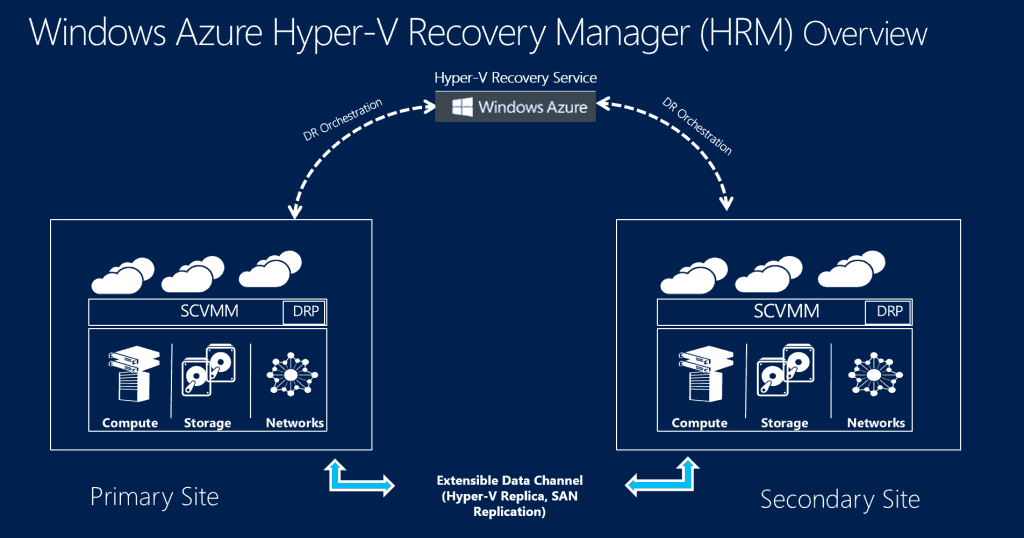
    Windows Azure Hyper-V Recovery Manager Service protects your on-prem applications by orchestrating the protection and recovery of Hyper-V Virtual Machines running in a private cloud (i.e. System Center Virtual Machine Manager 2012 R2 or System Center Virtual Machine Manager 2012 SP1) to a secondary location.
     Windows Azure Hyper-V Recovery Manager (HRM) Overview

    Key Differentiators

    Hyper-V Recovery Manager is unlike any other DR solutions previously available. A few key elements that really set it apart include:
    • Simple Setup and Configuration
      Hyper-V Recovery Manager has been designed for simplicity. Since it’s a hosted service, customers don’t need to install/deploy additional servers or worry about servicing/patching. By installing a lightweight VMM provider, they can extend their existing VMM environments and quickly make it DR ready. By leveraging VMM’s management capabilities, the service can also push cross-site configuration across a large number of Hyper-V hosts and Virtual Machines. This enables scale without comprising on simplicity. You also setup your DR policies at the cloud level. This allows you to express policy such as, “I want all VMs in the Finance cloud to be replicated to my local service provider,” or, “I want all VMs in the Redmond Cloud to be replicated to the Chicago Cloud.”
    • Automated Protection
      Hyper-V Recovery Manager leverages the capabilities of Hyper-V Replica to provide on-going replication of Virtual machines. The service also monitors for changes like VM migration, additions of new clusters, changes in network setting – and it automatically re-configures VM protection if needed. This ensures that Virtual Machines remain protected throughout the lifecycle without manual intervention.
    • Remote Monitoring
      Hyper-V Recovery Manager can be accessed via the Windows Azure Portal from any internet-enabled device. VM protection status can also be remotely monitored and, in the event of an unforeseen disaster, customers can begin the recovery operations remotely.
    • Orchestrated Recovery
      Cloud-based Recovery Plans enables automated DR orchestration by sequencing the failover of different groups of Virtual Machines. For example: In a multi-tiered application you can arrange the Database tier, middle tier, and web tier in different groups within a Recovery Plan and sequence it such that the database tier fails over and boots upbefore the other tiers. Additionally, recovery plans can be customized with scripts and manual actions. For example, one can combine a SQL Always On failover PowerShell script with a Hyper-V Recovery Manager Recovery Plan for application-specific DR operations.
    Windows Azure Hyper-V Recovery Manager can be accessed by licensed Windows Azure admin using the Windows Azure Management Portal (https://manage.windowsazure.com/) under Data Services\Recovery Services.

    Additional Information:


    Windows Azure Hyper-V Recovery Manager Reaches General Availability Release WindowsITPro

    Windows Azure: Staging Publishing Support for Web Sites, Monitoring Improvements, Hyper-V Recovery Manager GA, and PCI Compliance ScottGu's Blog

    Microsoft's Windows Azure gets payment-card compliance nod ZDNet

    How Hyper-V Recovery Manager works and where it falls short  TechTarget

    Retaining IP Address after failover using Hyper-V Recovery Manager  Server & Tools

    Disaster Recovery as a service by Hosting Service Providers using Windows Azure Hyper-V Recovery Manager  Server & Tools

    Hyper-V Recovery Manager concerns  4sysops

    Windows Server 2012 & Windows Azure Hyper-V Recovery Manager   Dan Stolts

    Edge Show 73 - Disaster Recovery using the Hyper-V Recovery Manager  Ch9

    Guided Hands-on Lab: Deliver Disaster Recovery as a Service (DRaaS) with Windows Azure Hyper-V Recovery Manager (HRM)  Keith Mayer

    Hyper-V Recovery Manager on Windows Azure: Game changer in DR architecture  TechRepublic

    How to use Windows Azure Hyper-V Recovery Manager   ClusterMVP